AI Tips

Practical tips for getting real value from AI coding assistants. Takes months to build a useful setup, here’s what I’ve learned.
Principles
The why behind everything else in this guide. Start here if you’re new to AI-assisted development.
The Three Things That Matter Most
If you take nothing else from this page:
1. AI doesn’t remove the need for discipline—it raises the cost of not having it.
Spec-driven development, testing, and documentation are more important than ever. Same for the unglamorous basics: branch off main, open a PR, review before merge. When AI can generate code at 10x the pace, the fundamentals that keep a codebase healthy (clear specs up front, tests that actually run, docs that stay honest, changes that don’t land straight on main) become the difference between compounding progress and compounding mess. Skip them and AI accelerates your drift into chaos just as fast as it accelerates feature delivery.
The beauty of AI agents is that all of this is now simplified: you can have AI write the specs, tests, and docs for you. Your job shifts from writing them to reviewing them.
Testing is where this bites first and hardest. If AI can’t run tests, you’re stuck in a ping-pong loop: AI writes code → you run it → it breaks → you paste logs → AI fixes → repeat. That’s slow and exhausting.
Set up your environment so AI can:
- Run unit tests directly
- Execute the code and see results
- Check logs and errors itself
And always include regression/E2E tests. Without them, AI will fix one thing and break three others. You’ll spend more time debugging than if you’d written it yourself. Good test coverage is the guardrail that lets AI move fast without wrecking everything.
2. Make AI remember what matters
Use CLAUDE.md files (global and per-repo), saved prompts, memory MCPs — whatever it takes. AI that remembers your patterns, conventions, and preferences keeps getting better. AI that starts fresh every time stays mediocre. This is how you build compounding value instead of repeating yourself forever.
3. Make AI review its own work
Before calling something done, ask AI to review it like a senior engineer reviewing a PR. Use the pattern: think like a senior [DOMAIN] engineer and review what we did. The domain matters — a “senior Go developer” catches different things than a “senior platform engineer” reviewing the same code.
When to review matters too. Don’t review after every small change — wait until you have a complete feature or finished product. Add feature 1, feature 2, feature 3… then review. With full context of what you’ve built, AI can suggest meaningful refactors and see architectural improvements that weren’t visible when you were building piece by piece.
Sharpen the Saw

The thing that feels most like procrastination is the thing that compounds fastest. Writing a new prompt, updating CLAUDE.md, installing a plugin, wiring up an MCP, refining a skill: it always feels like you should be doing “real” work instead. There’s a pressing bug, a feature deadline, a migration everyone’s waiting on.
But every hour invested in your setup pays back many times over. A well-tuned harness means AI asks fewer dumb questions, makes fewer dumb mistakes, and needs less hand-holding on every task from that point forward. A neglected harness means explaining the same things to the same model for the 50th time.
Make it a habit:
- When you catch yourself repeating instructions, save them to
CLAUDE.mdor a skill - When an MCP or plugin would have saved you 10 minutes today, install it tomorrow
- When your setup feels crusty, spend a morning cleaning it up instead of pushing through
This is what makes AI keep getting faster and better. The engineers who get the most out of AI treat the harness as a first-class artifact, not a side quest. It’s the leverage that makes everything else faster.
You’re the Tech Lead
Treat AI like a capable junior you’re coaching to senior. You’re the team lead, architect, QA, and product owner rolled into one.
The uncomfortable truth: AI is dumb. Same as people — without context, it makes bad assumptions. Your job is to train it, coach it, help it grow from junior to senior. Think of it as a team member whose experience you store in context files instead of their brain.
This takes time. Expect a few months before you have a truly useful setup. You’re building muscle memory together — yours for prompting effectively, AI’s (via context) for understanding your world.
What this means in practice:
- Always review the work — don’t blindly accept output. Read it, understand it, question it.
- Make it test its own work — ask for verification, have it run the tests, check the logs.
- Challenge assumptions — AI might be wrong (you catch a mistake) or right (you learn something). Either way, you win.
- Stay curious with what AI suggests — when it proposes a flag, primitive, or pattern you don’t recognize, stop and read the docs. I didn’t know about
priorityClassName: system-node-criticaluntil AI suggested it; 20 minutes later I understood Kubernetes priority classes and rolled it out on the right workloads. Curiosity compounds into real depth; blind acceptance quietly makes you worse. - Train your preferences — use global/local
CLAUDE.md, saved prompts, memory MCPs. The more context AI has about how you work, the less you repeat yourself. - Provide feedback — when something’s off, say so. “That’s too verbose”, “We don’t do it that way”, “Simplify this”. It adjusts.
- Learn from failures together — when you find the right way to do something, update the context immediately. Make AI learn from mistakes so they don’t repeat.
The goal isn’t to micromanage — it’s to maintain ownership. You’re responsible for what ships, not the AI.
TL;DR, the 4 modes of AI coding (from Viktor Farcic’s video):
- AI assists your writing: you type, AI completes. IDEs win.
- AI executes, you approve everything: micromanagement, every step needs a click. IDEs and TUIs both work.
- AI works, you watch: selective delegation, monitor and intervene. TUIs fit better.
- High autonomy, you review results: AI ships the change, you review the diff. TUIs excel.
The tool doesn’t pick itself by tribe, it picks itself by which mode you spend the most time in. As you move down the list, you’re acting less as an editor and more as a tech lead.
And once you run multiple agents in parallel (from the opening of Viktor’s Agent Deck video), the tech-lead framing snaps into a full manager role: pre-work planning (what, how, when for each agent), in-flight supervision (watch, unblock, course-correct), and validation (review before it ships). Same shape as managing humans, just with more concurrency and shorter feedback loops.
Agentic Engineering

My original stance when I started using AI agents was simple: if you can’t do it without AI, don’t do it with AI. You should know what AI is doing at all times. No vibecoding (Karpathy’s term for prompting, accepting whatever AI spits out, and pasting errors back until it works). Only what he now calls agentic engineering: AI does the implementation, human owns architecture, quality, and correctness.
That’s evolved.
I’ve built a lot of cool stuff by vibecoding since then.
Vibecoding is also how I’ve contributed to OSS projects I depend on. Features landed, bugs fixed, detailed reports filed, in codebases I’d never have touched on my own. And every PR got a proper review from the project’s maintainers before merge, which is the guardrail vibecoded code usually skips. Full log on Co-Authored with AI.
At home I vibecode freely. At work I avoid it as much as I can. The blast radius is the difference: at home it’s me, at work it’s a team or a client.
The nuance: you can build surprisingly complex, genuinely useful stuff by vibecoding, but you still have to know what you’re doing a bit. Enough to notice when the AI is confidently wrong. Enough to steer when it drifts. Enough to read the diff and sense when something’s off, even if you couldn’t have written it yourself.
And critically: vibecoded projects need guardrails that compensate for what you’re not personally watching.
- Tests that AI can run and that actually catch regressions
- Linting and type-checking on every save, so AI knows the instant it broke something
- Clean git history (branches, worktrees) so you can roll back bad runs cheaply
- Regular reviews of what’s accumulated, before the surface area gets too big
Without that, vibecoding becomes “AI writes 4000 lines, you merge blindly, production breaks two weeks later, nobody can explain why.” With it, vibecoding becomes a legitimate(?) way to build ambitious stuff fast.
The Cost of Being Wrong Just Collapsed
You no longer have to be sure you are doing the right thing before you start building. The cost of being wrong just dropped through the floor. You can produce something fast, put it in front of people, see if it sticks, and if it does not, throw it away and try something else. And then something else. And then something else. You keep iterating until you land on a hit. What used to be a carefully planned, months-long bet is now a rapid sequence of cheap experiments. The winners are not the ones with the best first idea. They are the ones who can try ten ideas in the time it used to take to plan one.
And that cheapness of building does not just speed up execution from the top. It changes who can initiate ideas in the first place. When creating something takes days instead of months, you do not need executive approval to explore. Claude Code started as a side project inside Anthropic. Nobody directed it from the top. Now it is a core part of their strategy. That kind of bottom-up innovation becomes far more viable when the cost of trying is close to zero. Engineers building tools that help their own work, small teams spinning up prototypes for new products, individuals scratching their own itch and discovering it is everyone’s itch. The cheapness of building flattens the hierarchy of innovation itself.
Don’t Build What Already Exists
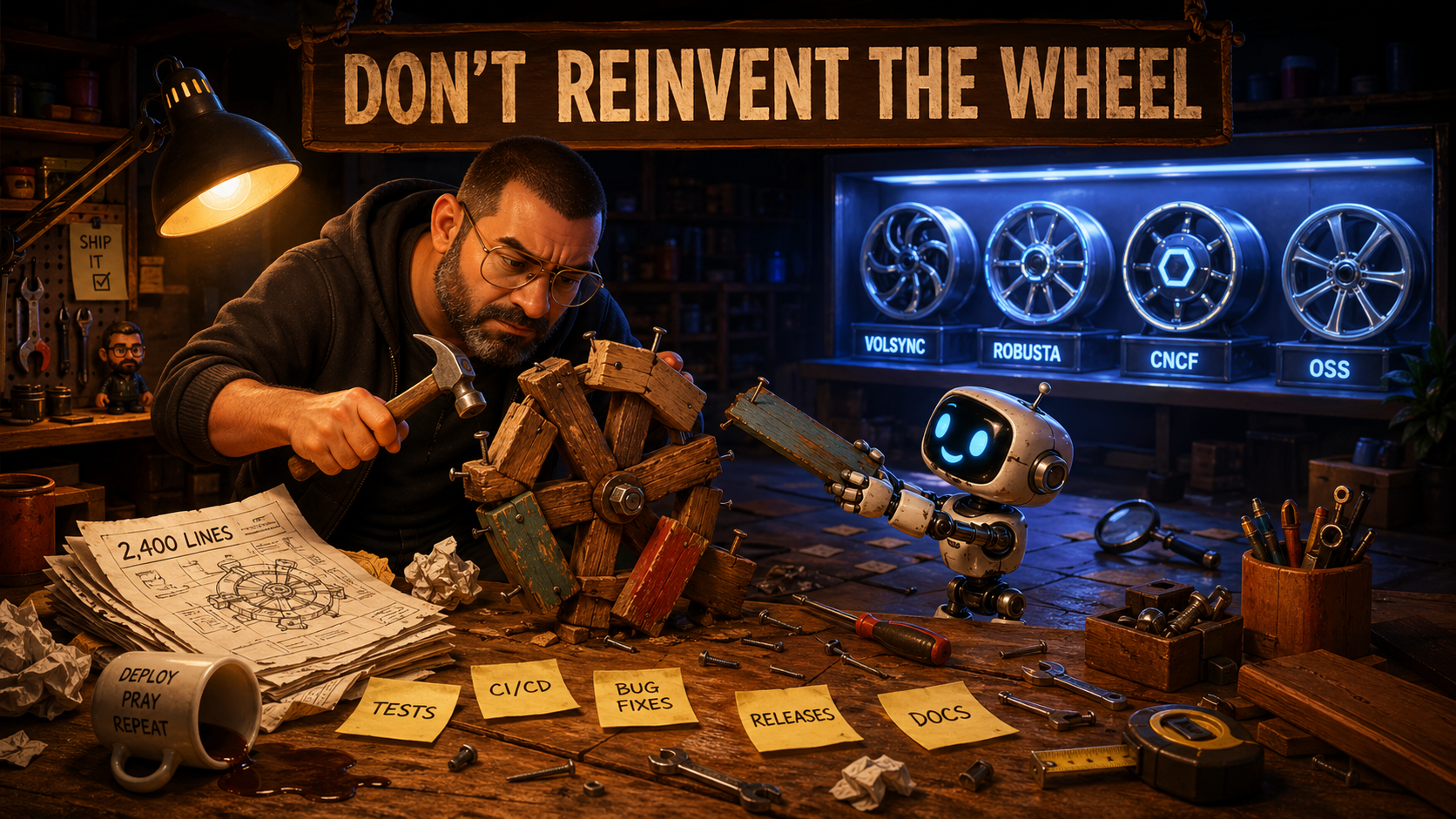
The flip side of “the cost of being wrong just collapsed” is the temptation to build everything from scratch. AI makes “I’ll just build it myself” feel almost free: type a prompt, get a working prototype in an hour. The temptation is huge. Resist it.
Before writing the first line, do the research. Spend a couple of hours searching: existing tools, combinations of tools, CNCF projects, k8s-at-home patterns, GitHub topic pages, the awesome-* lists. The thing you’re about to build probably already exists, often as a more mature, better-tested, better-documented project than what you’d ship.
I’ve learned this the hard way:
- s3bkp: I built a 2,400-line bash backup tool because Velero didn’t fit my model. VolSync was doing the same thing better the whole time. Another afternoon of research would have saved months.
- A homemade k8s troubleshooting agent: I started prototyping an AI-driven runbook flow before realizing Robusta already shipped most of what I had in mind. Killed the prototype, used the existing tool.
The cost of “I’ll just build it” is bigger than AI-assisted development makes it look. Writing the code is the cheap part. The real cost is everything that comes after:
- Tests that actually catch regressions
- Bug fixes for edge cases you didn’t anticipate
- Releases, versioning, changelogs
- CI/CD pipelines, build infrastructure, signing
- Documentation that stays current with the code
- Forever-maintenance: every dependency upgrade, every k8s API deprecation, every breaking change downstream
A mature project absorbs all of that for you. Your “free” hour of AI-generated code becomes a part-time job over the next two years.
The better path is usually to contribute, not build. If an existing tool covers 90% of what you need but is missing a feature, the right move is rarely “fork and rewrite.” It’s “open an issue, ask the maintainer how they feel about the idea, find out whether a PR would be welcome.” Most maintainers are happy to discuss, especially if you’re offering to do the work.
Be upfront that the implementation will be AI-assisted. The maintainers I’ve worked with are willing to consider it as long as you’ve done your best to test the change end-to-end and not ship AI slop. Some appreciate the transparency. The ones who’d reject it on principle, you’d rather find out before writing 2,000 lines of code.
I’ve shipped real features and bug fixes this way to projects I had no business contributing to (no Go, no Rust, no React production experience). See Co-Authored with AI for the full log. The pattern that works:
- Open a discussion or issue describing the feature you need and your use case
- Ask the maintainer how they feel about it and whether a PR would be welcome
- Mention up front that the implementation will be AI-generated, and that you’ll validate it end-to-end against your real workload before opening the PR
- Wait for the green light before writing anything
The conversation up front prevents closed-as-out-of-scope PRs, and it tends to start an actual relationship with the project rather than a one-off transaction.
When building is the right call:
- You’ve actually checked and nothing genuinely solves the problem
- Existing tools are abandoned, broken, or carry licensing or security risks
- The thing you’d build is small enough that maintenance stays trivial
- It’s genuinely novel, something rewarding to invent, with a clear reason nobody else built it yet
- You’ll learn something building it you can’t learn any other way (real, but rarely the deciding factor)
Inventing something new can be deeply rewarding. Reinventing something that already exists, less so. Weigh it consciously at the start, before the AI-generated repo has 4,000 lines and a deployment pipeline.
Workflow Patterns
How I structure work day-to-day so AI moves fast without breaking things.
Write PRDs, Clear Sessions Often
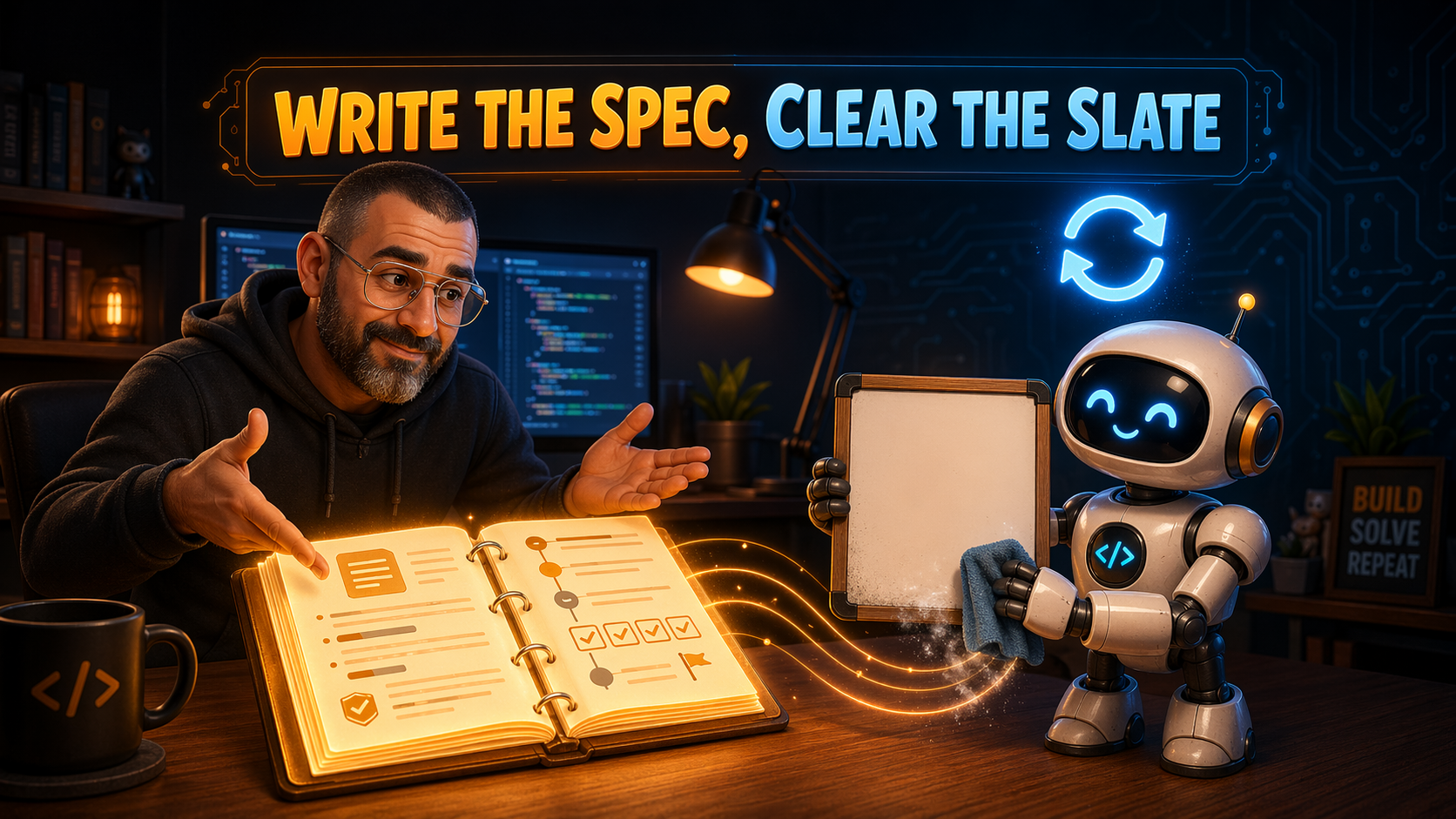
Two practices that used to be context-window workarounds and are still the right default even with 1M tokens.
Write a PRD before starting anything significant. Problem, proposed solution, success criteria, a list of milestones. Then point AI at the PRD and work through it one milestone at a time, clearing the session between them. The PRD workflow on the dot-ai page shows how I structure mine.
This originally mattered because context was tight. 200K tokens sounds like a lot until you’re ten tool calls into a migration: compaction kicks in, AI hallucinates what it half-remembers, and you spend the rest of the session fighting ghosts. Breaking work into PRD-sized chunks meant each task fit cleanly into a fresh session.
Does 1M context fix this? No, and the research is clear:
- Context rot is measurable. Chroma benchmarked 18 frontier models; every one degrades as context grows, and the rot starts around 50K tokens, long before you hit the headline limit (Chroma’s context rot research)
- Lost in the middle. Information near the start or end of context is recalled reliably; information buried in the middle loses 30%+ accuracy. The more you stuff in, the more you bury
- Hallucination scales with context. Opus 4.6 scores 76% on Anthropic’s own MRCR retrieval benchmark at 1M. Excellent for a frontier model, and still 24% wrong
- Costs rise more than caching implies. Cache reads are 0.1x base input, but cache writes are 1.25x. Every new tool call rewrites part of the cache, and the cached chunk keeps growing, so you pay more on reads too. The “infinite context is free if you cache” intuition is wrong
- It gets sluggish. Transformer attention is quadratic; huge contexts slow everything down per token, even ignoring quality
So the practice survives:
- Write the PRD, then execute it in a fresh session. This is Anthropic’s own advice: “once the spec is complete, start a fresh session to execute it”
/clearoften, especially between unrelated tasks- If you’ve corrected AI more than twice on the same thing in one session, clear and restart with a better prompt that bakes in what you just learned
- Treat the context window as a workbench you keep tidy, not as your working memory
The PRD file is the memory that survives the clear. That’s the whole trick.
Keep main Safe
Always work on a branch (or a worktree) when AI is about to touch anything non-trivial. This one habit will save you regularly.
Here’s the flip side of AI generating a lot of code fast: it can confidently restructure your architecture, rename half your files, and introduce three abstractions you didn’t ask for. All across ten commits. All in 30 minutes.
If that work is on main, untangling it is a nightmare. If that work is on a branch, you throw the branch away and try again with a better prompt. No sunk-cost fallacy, no regret. Being able to cheaply delete a week of AI exploration is sometimes the only reason the exploration was safe to try in the first place.
The practice:
- Start every non-trivial task on a new branch, even if you “just want to try something”
- For anything bigger, use a worktree. It gives you a separate directory for the experimental branch so you can keep
mainchecked out and building in parallel - When AI goes off the rails (it will),
git checkout mainand delete the branch. Gone
Worktrees also let you run multiple AI sessions in parallel on the same repo without fighting over a shared working directory.
Bonus: once the work is on a branch, push it, open a PR, and have AI do a final review of the whole diff before you merge. See Spin Up Expert Review Panels for how I structure that.
Tell AI to Work in Parallel
For migrations and repetitive tasks, tell AI to process multiple items in parallel. Instead of “migrate this resource” → review → “now this one” → review, say “migrate 5 resources in parallel.”
Why 5? It’s fast enough to feel efficient, but still few enough to review each one properly. This works for tasks where each item needs independent review — not for fully scripted migrations where you’d review the whole batch at once anyway.
Example prompt:
migrate the next 5 harbor replications in parallel,
show me the changes for each so I can review them together
Run Multiple Sessions: The Dialup Workaround
AI agents can feel like dialup. You ask something, wait while it thinks, reviews, runs tests… and you’re just sitting there. The workaround? Run multiple Claude Code sessions in parallel.
I typically have 3 terminal tabs open, each with its own Claude Code session working on a different task. While one agent is deep in a migration, I’m reviewing another’s output, and a third is exploring a codebase for me. When one finishes and needs my input, I switch to it, give feedback, and switch back.
How it works in practice:
- Tab 1: Working on a PRD milestone — writing code, running tests
- Tab 2: Investigating a bug in a different repo
- Tab 3: Generating documentation or doing a migration
Each session is independent, so they don’t interfere. Use different repos or worktrees if working on the same repo to avoid conflicts.
The tradeoff: More cognitive load from context-switching between conversations. You’re essentially managing 3 junior developers at once — checking in, reviewing, course-correcting. But it beats staring at a spinner. The total throughput is much higher even if each individual session gets slightly less attention.
Tip: Start with 2 sessions until the switching feels natural, then scale to 3. Beyond 3, the context-switching cost usually outweighs the parallelism benefit.
Spin Up Expert Review Panels
When you need a thorough review, don’t just ask AI to “review this.” Instead, spin up multiple agents in parallel, each with a different senior expert persona. They read the same document but focus on completely different concerns.
Example prompt:
spin up 3 agents in parallel:
one senior devops, one senior harbor expert, one python senior developer
to review this PRD
Each agent gets the full document plus a role-specific review brief. The DevOps engineer focuses on operational risk, rollback plans, and cross-repo coordination. The domain expert (Harbor, in this case) focuses on API edge cases, protocol-specific gotchas, and things only someone deep in that ecosystem would catch. The developer focuses on architecture, testing gaps, and code quality.
Why this works better than a single review:
- Different lenses see different things. The DevOps reviewer caught that a file path default would break when code moved between repos. The Harbor expert caught that proxy cache projects would be flagged as false positives. The Python developer flagged that a 4,000-line merge had zero testing plan (the only RED rating across all three reviews).
- Domain experts don’t overlap much. In practice, the three reviews had very little redundancy. Each surfaced unique findings the others missed entirely.
- It’s fast. All three run in parallel, so you get three thorough reviews in the time it takes for one.
Tips:
- Pick roles that cover different angles: ops, domain, code quality. Three generic “senior engineers” would overlap too much.
- Give each agent a specific review brief with questions tailored to their expertise, not just “review this.”
- After the reviews come back, synthesize the findings yourself and update the document. The agents find the gaps; you decide which ones matter.
Mine Your Whole History to Improve a Skill
/reflect improves a skill from the session you just finished. But the richest material is everything you have ever done with that skill, not just the last hour. So go wider: spin up a workflow that reads your whole history in parallel and proposes edits.
Point it at four things:
- The skill itself, for what it documents and where it has gone stale.
- The work it produced (my published articles), for conventions you follow but never wrote down.
- Side artifacts (my saved LinkedIn posts), for anything adjacent the skill should know.
- Every past session, mined for what you corrected or repeated. Those repeats are what the skill is missing.
Example prompt:
spin up a workflow with agents to:
- check my <name> skill
- analyze my past sessions
- analyze my published articles
- analyze my saved LinkedIn posts
goal: propose improvements to the skill
The prompt only states the goal. I never told it to run one agent per transcript, extract with shell tools, or add a verifier pass; the agent figured that out. The biggest win came from the sessions: a section I had hand-corrected the same way a dozen times collapsed into a few paragraphs of rules. The skill stops re-learning what you already taught it.
Why this beats /reflect alone: one session is a sample, your history is the signal. A correction you make once might be a fluke; the same one across ten sessions is a missing rule. Your published work also shows what you actually do, often ahead of what the skill says.
Your Rubber Duck Is Now Alive

Rubber duck debugging has been around forever: you explain your problem out loud to a rubber duck and halfway through the explanation you figure it out yourself. It works because articulating the problem forces you to think it through.
Now the duck talks back. And it has opinions.
Treat AI as a brainstorming partner, not just a task runner. Before writing code, before filing a plan, pitch the half-baked idea: “I’m thinking of doing X this way, what do you think? What am I missing?” You’ll often find the idea has a flaw you hadn’t spotted, or a simpler alternative you hadn’t considered, or a subtle issue that only shows up when you try to explain it out loud.
When this mode beats delegation:
- You’re weighing two approaches and can’t decide which is better
- You have a vague gut feeling something is off but can’t articulate it
- You’re about to start something big and want a sanity check first
- You just want someone to push back on your reasoning
The duck still does its old job (you think more clearly by explaining yourself), but now it can catch blind spots, propose alternatives, and ask the annoying follow-up questions that expose weak assumptions. It’s rubber-duck debugging with teeth.
Config / Setup
The dials worth tuning. Settings, config files, and tool choices that pay off across every session.
Pre-Allow Read-Only Tools
Allow as many read-only tools as possible in your Claude Code settings (~/.claude/settings.json). This lets Claude explore and investigate freely without constantly asking for permission — it only prompts for write operations.
Example settings:
{
  "permissions": {
    "allow": [
      "Bash(ls*)",
      "Bash(cat*)",
      "Bash(head*)",
      "Bash(tail*)",
      "Bash(grep*)",
      "Bash(rg*)",
      "Bash(find*)",
      "Bash(fd*)",
      "Bash(git status*)",
      "Bash(git log*)",
      "Bash(git diff*)",
      "Bash(git branch*)",
      "Read",
      "Glob",
      "Grep",
      "WebFetch",
      "WebSearch"
    ]
  }
}
The result: Claude can read files, search code, check git state, and browse documentation without nagging you. It only asks permission when it needs to write, edit, or execute something potentially destructive.
For a deeper dive on managing permissions across global and per-project Claude Code configs, see Dippy permissions.
Set Effort Level to Max
Claude Code has an effortLevel setting that controls how much thinking the model does before responding. Set it to max in your ~/.claude/settings.json:
{
  "effortLevel": "max"
}
Higher effort means deeper reasoning, better code, and fewer mistakes. The tradeoff is slower responses and higher token usage, but for real development work it’s worth it.
You can also change it per-session with /model, but setting it globally means you never forget.
For a detailed breakdown of effort levels and which settings make sense per subscription tier, see this guide.
Be Strategic with MCPs
MCP servers consume context window — each tool definition takes tokens. Having too many MCPs globally means Claude starts every conversation with less room for actual work.
Strategy:
- Global MCPs (
~/.claude/settings.json): Only essential, always-needed tools (e.g.: Context7 for docs, dot-ai for k8s/shared prompts, prometheus) - Per-repo MCPs (
.claude/settings.jsonin repo): Project-specific tools (e.g.: homeassistant, harbor)
This keeps context lean for simple tasks while having full tooling available where needed.
Install Plugins, Not Just Skills
Claude Code plugins bundle multiple extension types into a single installable unit: skills, slash commands, subagents, MCP servers, hooks. One command pulls in a coordinated set of capabilities instead of stitching them together piece by piece.
/plugin install frontend-design@claude-plugins-official
/reload-plugins
The @<marketplace> suffix points at a plugin source (the official marketplace, an org repo, or your own). After install, /reload-plugins makes new skills and commands available in the current session.
Useful when you want a coordinated bundle, e.g. a frontend toolkit that ships a design skill plus the matching commands, or a domain pack that wires up an MCP server alongside the prompts that drive it. For one-offs (a single skill or command), authoring it directly under ~/.claude/ is still simpler.
Same caveat as MCPs: every plugin you install adds tool definitions and metadata to your baseline context. Install the ones you actually use; uninstall the rest.
Cut the Fluff with Output Styles
Claude Code is chatty by default. You ask for a one-line fix and get a preamble, the fix, a summary of what just happened, and a closing offer to help further. It burns tokens, hides the actual answer, and adds up over a session.
The best fix isn’t a CLAUDE.md rule (those get appended as a user message and don’t replace the verbose default). It’s a custom output style, an official Claude Code feature that directly modifies the system prompt and persists across sessions.
Create ~/.claude/output-styles/terse.md:
---
name: Terse
description: Minimal, direct responses. No preamble, no summaries, no fluff.
keep-coding-instructions: true
---

# Terse Mode

- Lead with the answer or action. No preamble, no restating the question.
- No trailing summaries of what you just did. The diff speaks for itself.
- No sycophantic openers ("Great question!", "Sure!", "Absolutely!").
- One sentence beats three. Skip filler words and hedges.
- For investigations: report findings as a bulleted list, not prose.
- Skip "Let me..." / "I'll now..." narration before tool calls.
- No closing offers ("Let me know if you need anything else!").
- User instructions always win. If asked for detail, provide it.
Full version (what I actually use)
---
name: Terse
description: Minimal, direct responses. No preamble, no summaries, no fluff.
keep-coding-instructions: true
---

# Terse Mode

Respond with the minimum text needed to convey the answer or action. Optimize for the user's reading time, not for thoroughness or politeness.

## Rules

- Lead with the answer or action. No preamble, no restating the question.
- No trailing summaries of what you just did. The diff and tool calls speak for themselves.
- No sycophantic openers ("Great question!", "Sure!", "Absolutely!", "You're right!").
- One sentence beats three. Skip filler words, hedges, and transitional phrases.
- For code changes: show the change, then at most one line of context if non-obvious. Do not narrate the edit.
- For investigations: report findings as a short bulleted list, not prose paragraphs.
- For multi-step work: report milestones, not every intermediate step.
- Only explain reasoning when the user asks "why" or the decision is non-obvious and load-bearing.
- Skip "Let me..." / "I'll now..." narration before tool calls. Just call the tool.
- No closing offers ("Let me know if you need anything else!", "Happy to help with...").
- When asked a yes/no question, the first word should be Yes or No.

## What to keep

- Decisions that need user input.
- Errors, blockers, or surprises that change the plan.
- File paths and line numbers when referencing code (`file.ts:42`).
- Confirmation requests before risky or irreversible actions.

## Override

User instructions always win. If the user explicitly asks for a detailed explanation, walkthrough, or verbose output, provide it.
Activate it with /config → Output style → Terse, or set it globally in ~/.claude/settings.json:
{
  "outputStyle": "Terse"
}
You’ll need to start a new session for it to take effect (output styles are loaded once at session start so prompt caching stays stable).
Why output styles beat a CLAUDE.md rule:
- They replace parts of the default system prompt instead of being appended after it, so they actually counter the verbose defaults rather than fighting them.
- No per-message input token tax beyond the first cached request.
- Set once globally, applies to every project.
- It’s a first-class feature with built-in alternatives (
Default,Explanatory,Learning) you can switch between via/config.
For the full feature reference, see the official output styles docs.
Alternative approach: Caveman takes a more radical approach to the same problem. Instead of tuning the system prompt, it compresses Claude’s output using a custom encoding that strips articles, prepositions, and filler words. I haven’t tried it yet, but it’s worth a look if output styles alone aren’t aggressive enough for your taste.
Make AI Recommend Best Practices
By default, AI lists options neutrally. Tell it to be opinionated — highlight the best-practice choice and explain why. Add this to your CLAUDE.md:
- **Prefer best-practice solutions** — when presenting decisions or options,
  always highlight which option is the best-practice approach and why.
You want a senior engineer’s recommendation, not a menu.
Working with AI
How to talk to AI productively: when to feed context, when to push back, when to make it investigate.
Feed AI Your Hunches
When you notice something (a weird line in the logs, a pattern you half-remember, a suspicion about which file is involved), tell AI immediately. Don’t let it spin in circles while you sit there thinking “I bet it’s the cache layer” and waiting for it to figure that out on its own.
AI isn’t a mind reader. If you saw a flash of something in a dashboard two days ago, or you remember this service had a similar bug last month, or you just have a gut feeling about where to start: say it. Worst case it’s wrong and AI corrects you. Best case you save 20 minutes of it re-exploring ground you’ve already covered.
The trap: it’s tempting to watch AI flail a bit because it feels like a test. “If it can’t figure it out without hints, it’s not really smart, right?” Wrong. You have context AI doesn’t. Withholding it doesn’t prove anything, it just burns time and tokens.
The best collaboration runs both directions at once: you feeding in what you know, AI challenging what you assume.
Question Everything, Force AI to Verify
AI confidently states things. Some are true, some aren’t. Always challenge it — don’t assume it’s right just because it sounds right.
AI’s default is to answer from training data, even when the question hinges on something that changes (current versions, recent regressions, today’s API shape, a specific commit’s behavior, a library bug filed last week). That default is wrong, and your job is to push back. AI can be wrong for boring reasons: it’s trained on data from months or years ago, it’s confusing two similar libraries, or it’s just being lazy and pattern-matching on what an answer usually looks like instead of actually checking.
The mindset — challenge before accepting:
- Make it convince you. “Why do you think that? Walk me through it.” If the answer is hand-wavy, the claim probably is too.
- Ask for links. Official docs, release notes, source code, GitHub issues. If it can’t cite anything, treat the claim as a guess.
- Do your own research when still unsure. Read the linked page yourself. Don’t trust the summary of the summary.
The mechanic — name the tool to flip the default. The tools are already there in every modern coding agent: WebSearch, WebFetch, Grep, context7 / docs MCPs, gh issue list, clone-and-grep. AI just doesn’t reach for them unprompted because confident-from-memory is the cheaper path. Naming the tool in your prompt flips that default.
A few phrasings I keep close at hand:
- “investigate online to see if others hit this issue and how they resolved it”
- “clone the repo to
/tmpand trace the code path before claiming it’s a bug” - “use context7 to fetch current docs for
<library>before writing the code”
The wins compound. A 30-second web search beats an afternoon of debugging a wrong-by-confidence answer. Worst case you confirm AI was right and move on. Best case you catch a mistake before it ships, or learn something new in the process.
For one specific application of this mindset that bites DevOps teams more than any other, see Pin Versions, Not latest below.
Verify Bugs — Make AI Prove It
When AI claims there’s a bug in an open source project, don’t just take its word for it. Make it clone the repo and investigate the source code to confirm. AI can misread docs, hallucinate behavior, or confuse versions. But when you have it trace the actual code path — reading the handler, the frontend component, the RBAC check, the test cases — you get a real answer, not a guess.
I’ve used this pattern on three real bug reports to date:
- Flux Operator RBAC bug: AI traced the missing “Run Job” button through frontend → API → RBAC → tests and found
resource.gochecking workload actions against the wrong API group, with mock data masking it in the test suite. (issue #677) - Renovate Operator onboarding detection: AI found a naive
strings.Contains("onboarding")log parser that matched debug messages present in every run, falsely reporting all repos as un-onboarded. (issue #114, shipped in v2.4.1) - The bug behind the bug fix: when the v2.4.1 fix didn’t actually solve the problem, AI traced it deeper and found Renovate emits a 190KB+ log line that exceeds
bufio.Scanner’s 64KB default. (issue #117)
Full entries with status and project links on the Co-Authored with AI page.
The pattern:
clone the repo to /tmp and investigate further,
make sure this is actually a bug before we report it
This also works in reverse — sometimes the investigation reveals you were holding it wrong, saving you from filing an embarrassing false bug report.
Tell AI to Push Back, Not Politely Cave
The flip side of Question Everything. When you push back on an AI’s claim, its default is to apologize and rephrase as if you were right, regardless of whether you actually are. That’s poison for trust: you can no longer tell whether it caved because you convinced it, or just to keep the peace.
Add a rule to your CLAUDE.md that forces it to verify before agreeing or disagreeing, and to defend its claim with evidence when it has one:
- **Truth over agreement.** Care about being correct, not agreeable. When
  the user pushes back, do not silently cave or "politely" rephrase as if
  they were right. If I had evidence for my claim, defend it and bring more
  evidence. If I find I was wrong, say so directly ("you're right, I was
  wrong because X") rather than dressing it up. If I am genuinely uncertain,
  say "I'm not sure, let me check" and **actually verify before agreeing or
  disagreeing**. Verification moves: read the relevant code in this
  workspace, run a quick experiment, query the **context7 MCP** for
  library/framework/CLI docs (preferred over web search since training data
  may be stale), fetch authoritative docs with WebFetch / WebSearch, or, for
  public OSS projects, `git clone --depth 1 <url> /tmp/<name>` and grep the
  source directly (handler files, schema migrations, etc.) rather than
  trusting a research agent's summary. Never validate a claim I have not
  checked just to keep the peace. Sycophantic phrasing ("good point",
  "great catch", "you're absolutely right") is not a substitute for
  actually reasoning about whether the user is right.
Pair this with Question Everything above. You question AI’s claims; AI questions yours; both sides verify with evidence. That’s the productive shape, not the polite one.
Pin Versions, Not latest
latest.The same pattern applies anywhere AI suggests a specific version, image digest, API version, or feature flag: assume it’s stale until verified. Helm chart versions, container image tags, Kubernetes API versions (apps/v1beta1 is long gone), Terraform provider versions, language runtime versions, all live in the danger zone.
Before applying any AI-suggested pin:
- Look up the latest stable from the project’s release page or registry
- For k8s and CNCF projects, prefer the most recent minor that’s been out long enough to have a
.1or.2patch (avoid.0releases unless you have a reason) - Never use
latest,main,master, or other floating tags in production - For container images, pin to a digest (
sha256:...) when supply-chain integrity matters
A 30-second registry check beats discovering at 2am that the AI-suggested chart version was deprecated 8 months ago.
Use AI to Generate Prompts
Use AI to generate prompts for AI — inception, I know :)
My prompt:
update prompt to say when we create a new page to generate some tags, check existing tags, see which match and ask the user if proposed tags are okResulting prompt:
### Tags

When creating a new page:

1. **Check existing tags** by searching `content/` for `tags:` patterns
2. **Reuse existing tags** where they match (consistency over creativity)
3. **Propose new tags** only when needed
4. **Ask the user** to confirm the proposed tags before adding them

Keep tags lowercase, short, and meaningful. Avoid generic tags like "blog", "update", "milestone".
Tactical Features
Small Claude Code features that punch above their weight once they’re muscle memory.
Run Bash Commands Inline with !
You can run shell commands directly from inside Claude Code by prefixing them with !. No need to exit the session, open another terminal, or ask Claude to run it for you.
> ! kubectl get pods -A
> ! git log --oneline -5
> ! cat /tmp/output.json | jq '.items[0]'
Useful for quick checks while Claude is working, verifying something yourself before Claude continues, or running commands you don’t need Claude to see or interpret.
Enable Experimental Agent Teams
Claude Code has an experimental feature that lets agents talk to each other directly (not just report back to a lead). Each teammate runs in its own 1M-token context, with a shared task list and an inbox-based mailbox for inter-agent messaging. Different from subagents, which can only reply to their parent.
Enable it in ~/.claude/settings.json:
{
  "env": {
    "CLAUDE_CODE_EXPERIMENTAL_AGENT_TEAMS": "1"
  }
}
Restart Claude Code for it to take effect. Caveats: one team per lead, no nested teams, /resume doesn’t restore in-process teammates. See the official docs.
Teammate display modes — Claude Code accepts --teammate-mode to control where teammates render:
in-process(default): all teammates share your single terminal;Shift+Up/Shift+Downcycles views. Works anywhere, feels cramped.split-panes: each teammate gets its own tmux or iTerm2 pane, all visible at once.auto: uses split panes if it detects tmux, else falls back to in-process.
See Teams in cmux Panes
cmux is a native macOS terminal built for multi-agent work. It ships a cmux claude-teams launcher that:
- sets
CLAUDE_CODE_EXPERIMENTAL_AGENT_TEAMS=1for you, - installs a tmux shim on
PATHthat translates tmux calls (split-window,send-keys, etc.) into native cmux splits, - execs
claude --teammate-mode auto.
Result: every teammate spawns as a real cmux pane stacked in a right column, with sidebar metadata and notifications. No tmux required.
I alias it for one-keystroke launches:
alias cc='cmux claude-teams'See the cmux blog post and Claude Code Teams docs for the full setup.
Manage Memories with /memory
Claude Code has two memory systems: CLAUDE.md files (you write these, they’re instructions and rules) and auto memory (Claude writes these, things it learns as you work together).
The /memory command opens an interactive menu where you can:
- View all loaded memory and
CLAUDE.mdfiles - Toggle auto memory on/off for the current project
- Open memory files for editing
Auto memory is stored at ~/.claude/projects/<project>/memory/ and contains a MEMORY.md index file plus optional topic files (e.g., debugging.md, patterns.md). Claude automatically saves useful patterns, corrections, and preferences here across sessions.
> /memoryYou can also ask Claude directly to remember something: “remember that we always use pnpm in this project” and it saves it to auto memory. Or just edit CLAUDE.md yourself for things you want to enforce as rules rather than suggestions.
CLAUDE.md to custom commands, skills, agents, and permission settings.CLAUDE.md files (global + per-repo), including a ready-made template and how to split large instruction sets into .claude/rules/, see the CLAUDE.md page.Closer
The reminder you didn’t ask for, plus a few extra reads.
Take a Break
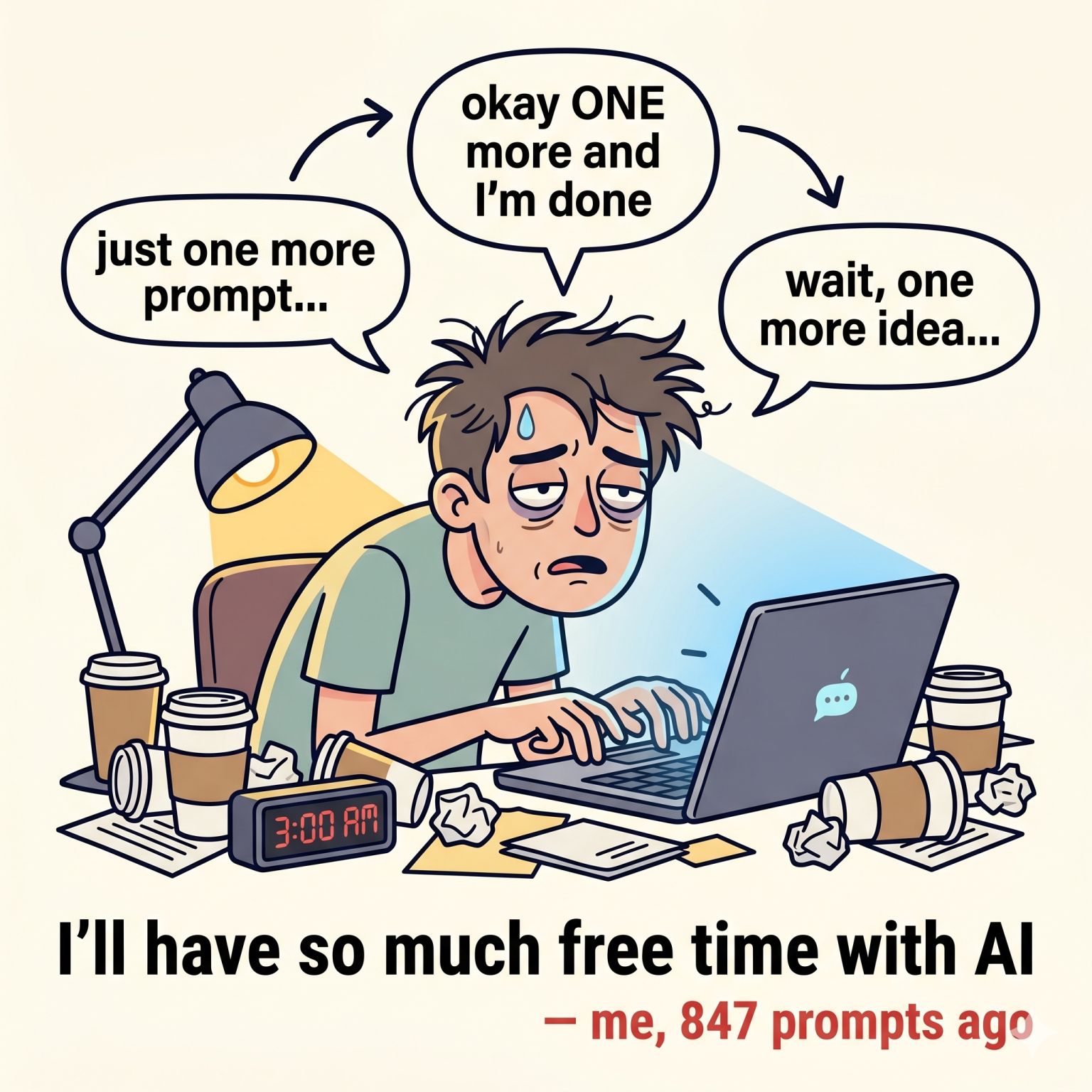
AI-assisted coding is addictive. You get into a flow where ideas turn into working code faster than ever, one task leads to another, and suddenly hours have vanished. The dopamine loop of “prompt → result → prompt → result” is real.
Don’t forget to step away. Stretch, hydrate, touch grass. Your best ideas often come when you’re not staring at a terminal.
Not convinced it’s a real problem? Read I take my laptop to the gym so Claude doesn’t have downtime. That’s the edge of the cliff.
Resources
- Must see: Beyond the basics with Claude Code. The mechanics that separate basic Claude Code use from real leverage: CLAUDE.md done well, wiring tools in with MCP, packaging team knowledge as skills, and using auto mode safely.
- How I Tamed Chaotic AI Coding with Simple Workflow Commands
- Mastering Claude Code in 30 minutes